Wiz Kid's Spellbook
Fake CAPTCHA told you to press Windows+R? Stop — it may be the ClickFix scam

Matt Davis
Owner, Wiz Kid Tech Repair
ScamsAug 27, 202610 min read
Mon–Fri 8:00 AM – 5:30 PM · Sat-Sun Closed
Muncie, Indiana(765) 372-4190
Matt Davis
Owner, Wiz Kid Tech Repair
You are trying to open a website, document, video, or download when a familiar-looking box says it needs to verify that you are human. Then the instructions become unusual: press Windows+R, paste whatever is on the clipboard, and press Enter. Stop there. That is not a normal CAPTCHA — it is a warning sign of a malware-delivery trick commonly called ClickFix. A legitimate human-verification check stays inside the webpage. It never needs you to open Windows Run, PowerShell, Command Prompt, or Terminal, and it never needs you to paste a system command.
ClickFix is social engineering: instead of tricking you into downloading a file, the attacker convinces you to perform the step that starts the infection yourself. Microsoft says these attacks often begin with a phishing message, malicious advertisement, or compromised website. The page presents a fake CAPTCHA, error, or security warning, quietly places a hidden command on your clipboard, and tells you to paste and run it in a trusted Windows tool.
The trusted Windows tool is not the malware. The problem is the untrusted instruction being executed inside it. Once run, the command can contact an attacker-controlled server and retrieve additional code. Microsoft has observed ClickFix campaigns delivering information stealers that target passwords and browser data, remote-access tools, downloaders that install more malware, and persistent threats designed to return after a restart. Some payloads operate partly in memory or use legitimate Windows components, which makes the activity less obvious than a normal downloaded program.
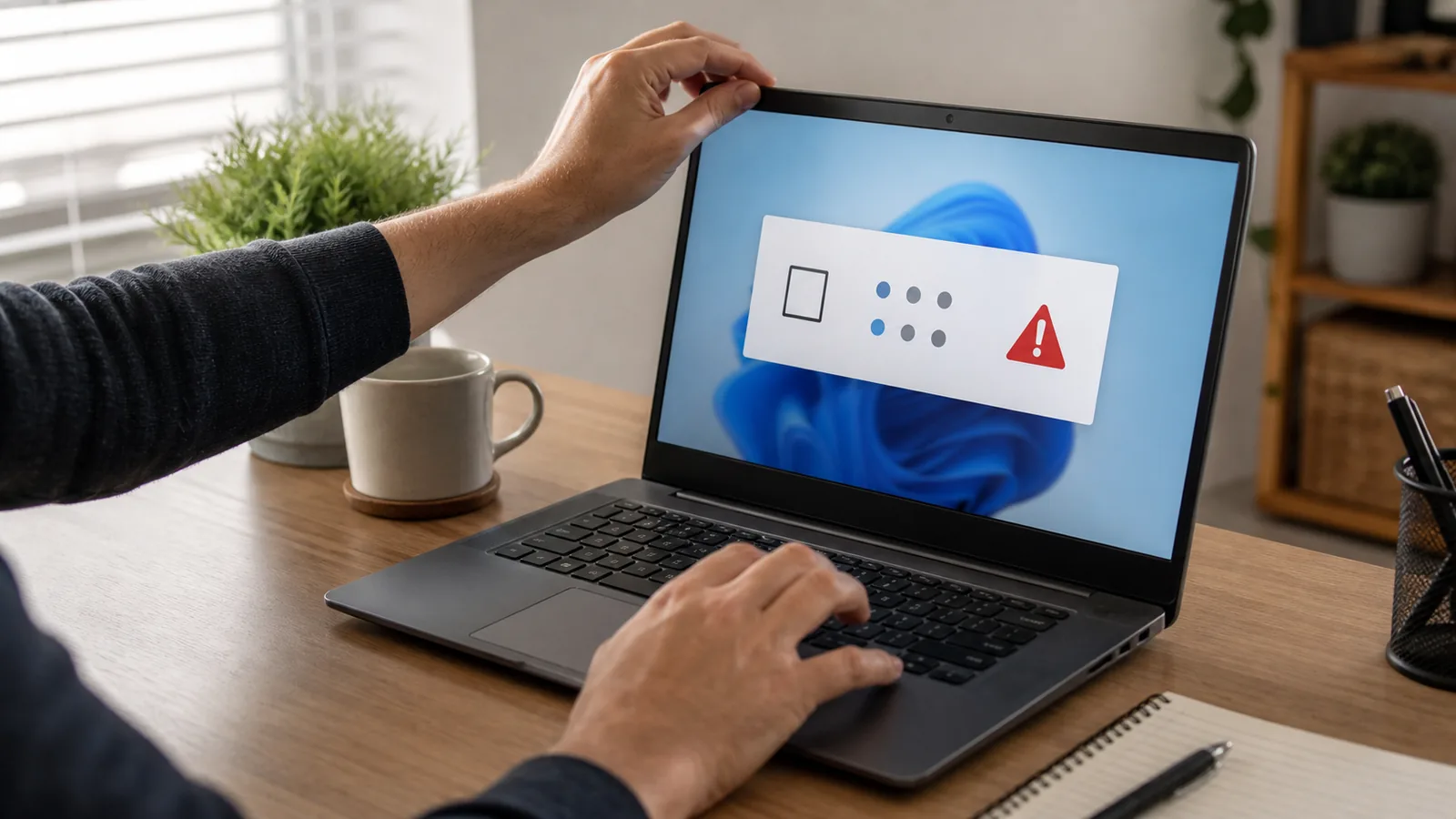
The technique keeps evolving. In February 2026, Microsoft described a related 'CrashFix' variant that deliberately disrupts the browser, displays a fake repair warning, and leads victims into running a malicious command. The lesson is simple: a crashed or frozen browser does not make a webpage's command-line 'fix' trustworthy.
Leave the page if a verification prompt asks you to do any of the following.
If you did not paste or run anything, the ClickFix command was not executed. Close the page and the browser, do not revisit the link, and clear recent downloads if the page started one — without opening the file. Then update Windows, your browser, and your security software, and run a scan if the page opened unexpectedly or the browser behaved strangely.
If the browser will not close normally, use Ctrl+Shift+Esc to open Task Manager, select the browser, and end the task. When you reopen it, do not restore the suspicious tab. If you are not comfortable doing that, shut down the computer and ask someone you trust for help.
Pasting text into a box is different from executing it — the dangerous step is running the command. If the text is sitting in the Run box or terminal and you have not pressed Enter, clicked OK, or approved a prompt:
Assume the computer may be compromised. A quiet screen or a message saying the verification succeeded does not prove you are safe. Act in this order.
A clean scan is helpful, but it cannot pull back passwords or files that may already have left the computer, and it cannot guarantee every system change has been reversed. Microsoft's own technical guidance involves inspecting startup entries, scheduled tasks, and other persistence locations — technician-level work where guessing can damage Windows.
A professional assessment is especially appropriate if the computer stores tax, financial, medical, or business information; if you were signed into email or a password manager; if security software found something or cannot finish a scan; or if you cannot identify exactly what ran. For a high-confidence recovery after an unknown information stealer, a clean Windows reinstall from trusted installation media may be safer than chasing individual traces — with a backup planned carefully so it does not simply preserve the infection.
For a work computer, follow your employer's incident-response policy and contact IT immediately. Do not reconnect it, wipe it, or start deleting evidence unless they instruct you to.
Teach one memorable rule to everyone who uses the computer: a website never needs a Windows command to prove you are human. That single sentence is easier to remember than a list of malware names, and it covers every variant of this scam we have seen.
Beyond that, keep the protective layers current: install supported Windows and browser updates, keep real-time antivirus and reputation-based browser protection on, remove browser extensions you do not recognize, avoid pirated software and unknown download sites, use unique passwords with multifactor authentication, and keep a tested backup of important files.
ClickFix-style lures are not limited to Windows, either. Microsoft has observed them targeting macOS users as well — any page that asks you to open Terminal and paste a command to 'verify yourself' should be treated as malicious.
“If a CAPTCHA or error page tells you to press Windows+R, open a terminal, or paste a command, close it — the 'verification' is the attack.”
— The bottom line
New Spellbook articles, scam warnings, and plain-language tech advice from the repair bench — sent occasionally, never in a rush.
No spam. Unsubscribe anytime.