Wiz Kid's Spellbook
External hard drive not showing up? Stop before you initialize or format it

Matt Davis
Owner, Wiz Kid Tech Repair
DataAug 31, 202611 min read
Mon–Fri 8:00 AM – 5:30 PM · Sat-Sun Closed
Muncie, Indiana(765) 372-4190
Matt Davis
Owner, Wiz Kid Tech Repair
An external drive that worked yesterday may suddenly disappear from File Explorer or Finder. Windows might call it Not Initialized, RAW, or Unallocated, or ask you to format it. A Mac may show the hardware in Disk Utility but never mount the volume. Your first reaction may be to click the button that promises to make the drive usable again — but if the drive already holds files you care about, stop. Initialize, Format, Erase, and New Simple Volume are setup actions, not data-recovery buttons. They are fine for a truly new, empty drive. They are the wrong first response to a drive holding family photos, business records, tax documents, or the only copy of anything important.
There are two very different goals here: making the physical drive usable again, and recovering the files that were already on it. Formatting may accomplish the first while harming the second. A warranty replacement may hand you another drive while taking the original away. A repair utility may make the file system mount again — or alter the very structures a recovery specialist would have examined.
If the drive is new, blank, and has never held needed data, normal initialization and formatting may be all it needs. If the drive previously worked and contains files you need, switch goals. Your priority is no longer “make it appear.” It is “avoid unnecessary changes until I understand why it disappeared.”
Disconnect the drive and avoid repeated power-ups if any of these are true:
Do not open a hard drive, tap it, shake it, freeze it, or swap internal parts based on a video. Opening a sealed mechanical drive outside an appropriate clean environment introduces contamination that a lab then has to work around. Portable drives can also include model-specific USB hardware or built-in encryption, which makes a casual enclosure swap far more complicated than it looks.
The freezer trick in particular is worth naming: condensation and temperature swings can cause additional damage, and it does not address the underlying mechanical failure.
These checks are meant to identify a connection or compatibility problem without deliberately changing the contents of the drive. If the device has physical-failure symptoms or holds exceptionally valuable data, skip the DIY checks and get an assessment instead.
On Windows, right-click Start and open Disk Management. Identify the external drive by its approximate capacity, and be extremely careful not to select the computer's internal system drive. Write down whether it shows the expected capacity and a Healthy volume, a recognized file system with no drive letter, or one of the alarming states: RAW, Unallocated, Unknown, Not Initialized, Offline, or No Media.
Do not initialize, format, create a volume, delete a partition, convert the disk, or run command-line cleanup tools just to see whether that helps. If the drive shows the correct size, a recognized file system, and a healthy volume but simply lacks a drive letter, the problem may be Windows' mount assignment rather than lost data — assigning an unused letter is a reasonable step once you have positively identified the right volume. If anything shows RAW, Unallocated, Not Initialized, a hardware error, or the wrong capacity, stop.
On a Mac, resist clicking First Aid when the files are not backed up. Apple describes First Aid as a repair tool for file-system and directory structures and advises having a current backup before using it. Disk Utility also cannot detect or repair every disk problem.
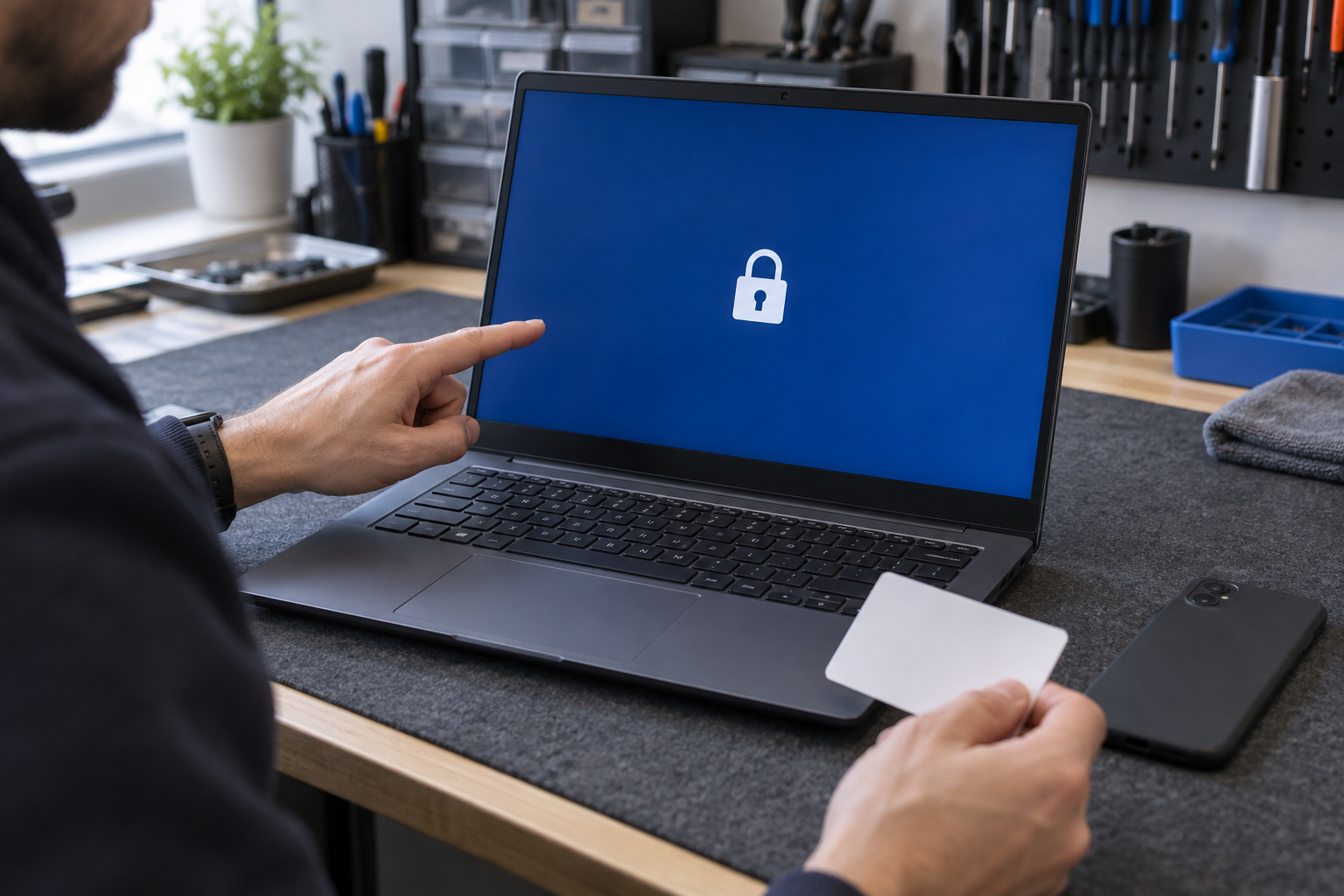
“You need to format the disk before you can use it” means Windows can see a device but cannot mount a file system it understands. The cause could be file-system damage, a format created by another operating system, encryption, corrupted partition information, or a failing drive. Click Cancel if the files matter — formatting a volume destroys the data on that partition, and a quick format still creates new file-system structures.
“Unknown” or “Not Initialized” means Windows cannot use the disk's partition information normally. That does not prove the disk is empty. Western Digital notes this can result from a damaged partition table, media errors, a failing drive, permissions, or encryption — and that data may still be present. Do not pick GPT or MBR just because Windows asks; initialization writes new disk metadata.
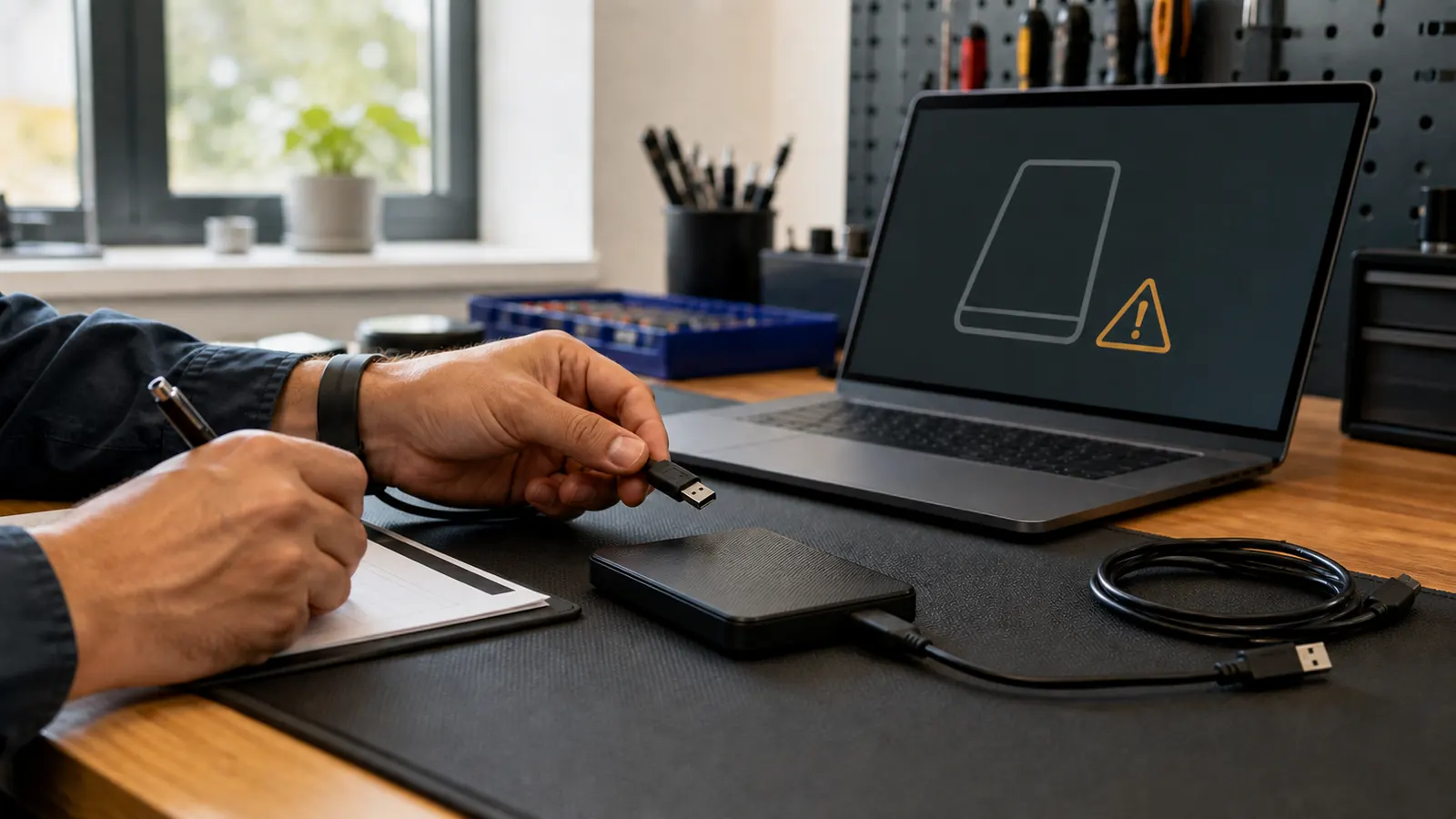
“RAW” means Windows sees a volume but does not recognize a usable file system. “Unallocated” means Disk Management sees no normal partition covering that space; creating a New Simple Volume writes new structures and should never be the first move. If the drive does not appear in Disk Management or Disk Utility at all, the cable, port, power supply, USB bridge, or enclosure electronics are all suspects — and software recovery tools cannot work with a device the system cannot reliably talk to.
CHKDSK and Disk Utility First Aid are repair tools, not data-recovery imaging tools. They are useful in the right situation — a healthy drive with a current backup. They can also change file-system metadata while trying to make a volume internally consistent, and Microsoft documents that repairs on FAT file systems change the allocation table and can sometimes involve data loss.
If a drive is physically failing or holds the only copy of important data, repeated read-and-repair activity can consume the remaining time in which it is readable. A recovery workflow normally captures what can be read to another healthy device first, then attempts repairs on the copy — not on the original.
DIY software recovery is more appropriate when all of the following are true:
Seagate advises never using a recovery or repair utility that saves recovered data back to the affected media, and specifically says not to format the drive or change its partitions when data has been lost. Microsoft's own Windows File Recovery tool requires the destination to be different from the source, for the same reason: new writes can overwrite space that still contains recoverable data.
So do not install recovery software onto the affected drive, download anything to it, or save recovered files back to it. Do not make the failing drive the destination for a backup, and do not start by reorganizing folders or deleting duplicates if it becomes readable — copy the irreplaceable files first.
A specialized lab is the safer next step when the drive clicks, clunks, grinds, or was physically damaged; when it is not detected reliably with a known-good cable, power source, and computer; when it reports the wrong capacity or freezes the system; when it holds the only copy of irreplaceable family, legal, medical, or business data; when it is part of a RAID or NAS or uses hardware encryption; when an SSD failed suddenly; or when a prior repair attempt made things worse.
A normal computer-repair shop and a data-recovery laboratory have different capabilities. Ask whether the provider performs logical recovery, hardware imaging, board work, clean-environment mechanical work, RAID reconstruction, or simply forwards cases to a partner. A responsible shop explains the limits before taking payment and does not guarantee recovery before diagnosis.
We can help determine whether your problem looks like a cable, power, mount, file-system, enclosure, or likely hardware issue — and whether continued local work is appropriate. When specialist equipment is the responsible next step, recognizing that boundary early is the valuable part.
A hardware warranty and data recovery are separate things. Seagate's consumer warranty states that data recovery is not included in the standard replacement process, that the original device will not be returned after replacement, and that data loss is not covered. Other manufacturers differ, and some offer optional recovery coverage — read the exact terms tied to your serial number before shipping anything.
If the files matter, finish the recovery decision before authorizing an exchange, return, recycling, or disposal.
An external drive is storage, but it is not automatically a backup. If the only copy of a file lives on that drive, losing the drive means losing the file. Once your files are safe:
“Initialize and Format are setup buttons, not recovery buttons. When a drive holds files you cannot replace, the best first step is restraint.”
— The bottom line
New Spellbook articles, scam warnings, and plain-language tech advice from the repair bench — sent occasionally, never in a rush.
No spam. Unsubscribe anytime.