Wiz Kid's Spellbook
BitLocker Recovery Screen? Find the Key Before You Reset Anything

Matt Davis
Owner, Wiz Kid Tech Repair
WindowsSep 19, 202612 min read
Mon–Fri 8:00 AM – 5:30 PM · Sat-Sun Closed
Muncie, Indiana(765) 372-4190
Matt Davis
Owner, Wiz Kid Tech Repair
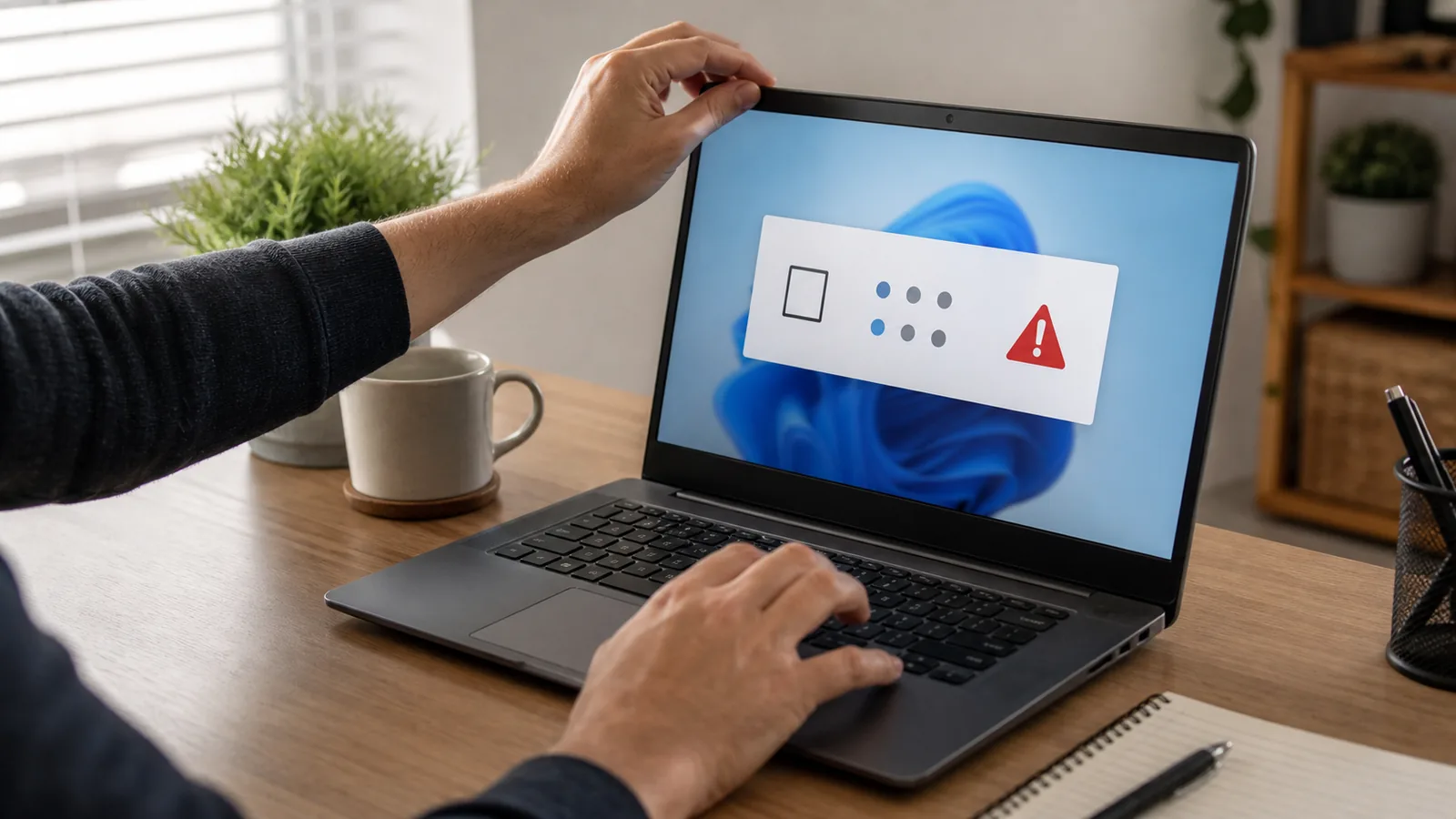
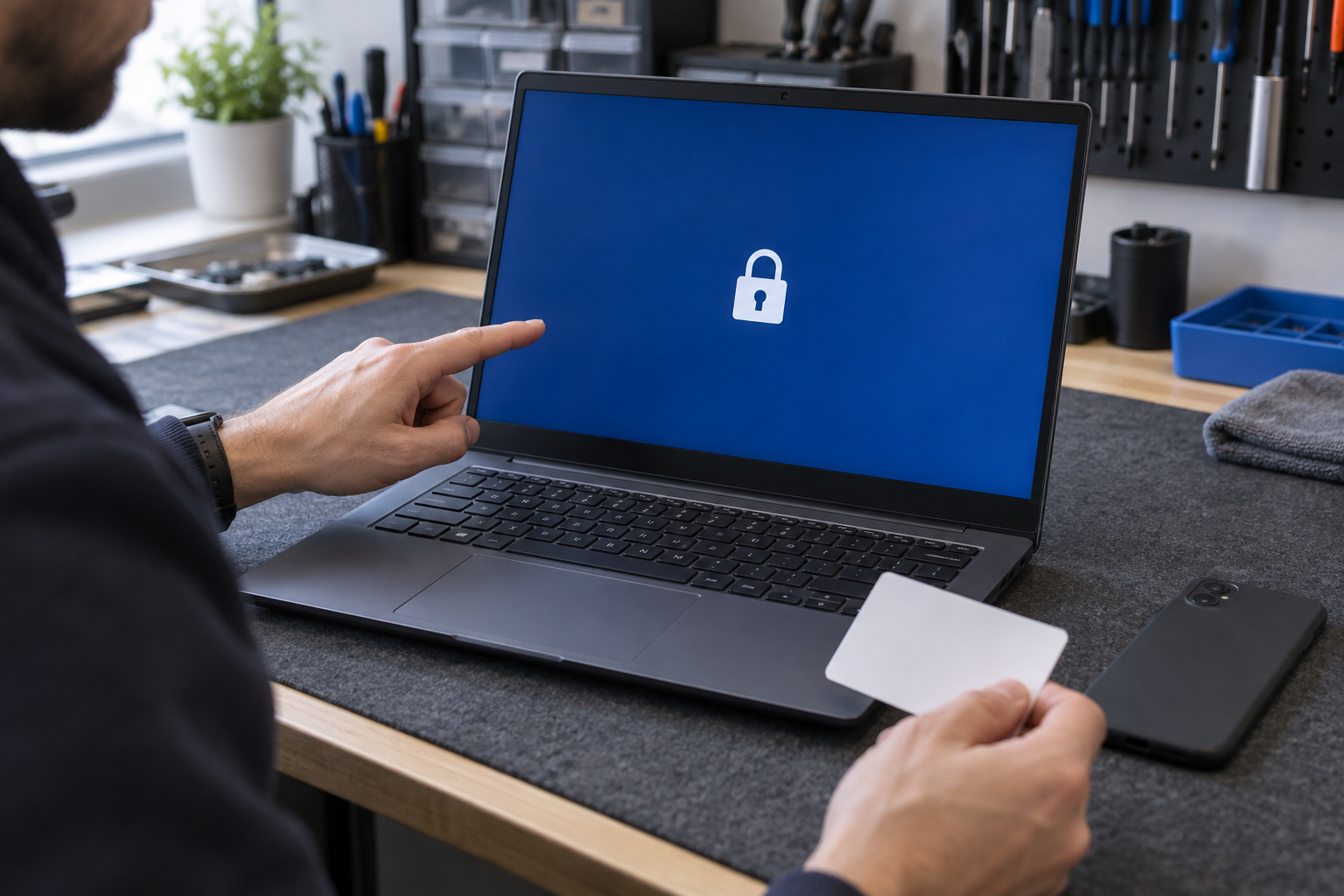
You turn on a Windows computer and, instead of the usual sign-in screen, see a blue page asking for a BitLocker recovery key. It wants a 48-digit number you may not remember creating. Do not reset the PC, format the drive, clear the TPM, or start changing BIOS settings while the files matter. First record the recovery key ID shown on the screen and find the matching key. BitLocker is drive encryption. It is supposed to make the files unreadable without authorized credentials—even if someone removes the drive and connects it to another computer. That protection is valuable when a laptop is lost or stolen, but it also means there is no legitimate master password a repair shop can use when the recovery key is missing.
Many Windows PCs use Device Encryption, a simplified form of BitLocker that can turn on automatically. When a supported PC is set up or first signed into with a Microsoft account or a work or school account, Device Encryption may be enabled and its recovery key attached to that account. It is available on many Windows Home devices as well as systems with Pro, Enterprise, or Education editions.
The recovery screen appears when Windows cannot use its normal trusted method to unlock the drive. This can follow a possible security risk or a hardware, firmware, or software change that BitLocker cannot distinguish from an unauthorized attempt. The screen alone does not prove that the computer was hacked, that an update caused the problem, or that the drive failed.
Photograph the full message and the recovery key ID, especially its first eight digits. That ID identifies which saved recovery key belongs to this drive. It is not the same as the 48-digit recovery key you must enter. Do not post the photo publicly, and never publish or message the actual recovery key.
Until the key is available, stop making firmware and recovery changes. Some changes can create additional boot problems, and a reset or reinstall can remove the encrypted files. If the data is the priority, preserve the computer's current state.
Use another computer, phone, or tablet that you trust. Type Microsoft's address yourself rather than following an ad, unsolicited message, or support link. For a personal Microsoft account, start at aka.ms/myrecoverykey.
Sign in with the account used to set up or manage the locked PC. Newer Windows recovery screens may show an account hint. Match the saved key's ID to the ID displayed on the locked computer; do not choose a key solely because the device name looks familiar.
Check every Microsoft account that could have been used on this PC, including an old Outlook, Hotmail, Live, Xbox, Skype, or Microsoft 365 sign-in. A parent, spouse, family member, shop, or helper may have performed the original setup. A secondhand computer may still be tied to the previous owner's key custody.
If the computer is or was managed by an employer, school, nonprofit, or government agency, the organization may hold the key. Contact its IT administrator before attempting any reset. Do not try to bypass organizational controls on an employer- or school-owned device.
BitLocker setup can also save or print recovery information. If several keys exist, use the recovery key ID to select the correct one.
A BitLocker recovery password contains 48 digits in eight groups. Use the key whose ID matches the screen. Enter it once, carefully, then follow the prompt.
If the computer unlocks and starts normally, back up important files immediately, confirm that the recovery key is stored somewhere you control, and record what happened immediately before the prompt. Have recurring prompts or startup errors diagnosed before making more firmware changes.
Do not turn encryption off just because the screen was inconvenient. BitLocker protects the data if the device is lost or stolen. The goal is to correct the trigger and maintain reliable key custody, not remove security reflexively.
A recurring recovery prompt is usually a different problem from a missing recovery key. The key has proved ownership and decrypted the drive; something in the trusted boot path is still changing or failing validation.
Firmware or operating-system upgrades applied without properly suspending BitLocker can trigger recovery at restart. That does not mean you should start changing TPM or security settings from a generic online recipe. Those controls are security-sensitive and device-specific. If Windows opens after the key is accepted, back up first and then have the cause inspected.
The encryption hurdle and the boot failure are separate layers. A correct key can unlock the drive while Windows still has damaged boot files, a failed update, a storage problem, or another startup issue. Do not assume the key was wrong just because the desktop did not appear.
Record the next error exactly. Windows Recovery Environment and many repair operations will also require the BitLocker key to access the protected drive. A repair provider can test the drive, analyze boot errors, and attempt non-destructive repair after the correct key unlocks the volume. Before authorizing work, ask whether a proposed step can erase data and whether a backup should come first.
Do not conclude that it never existed. Work through ownership and custody deliberately. A key listed under the account but carrying a different ID is not the correct key for this encrypted volume.
Not by bypassing BitLocker. Microsoft cannot retrieve, provide, or recreate a lost recovery key. The drive is designed to be unrecoverable without the required authentication.
A reputable repair shop can still help identify the account or organization that may hold the key, match the key ID, diagnose a firmware or boot problem, back up data after legitimate unlock, or reinstall Windows after the owner knowingly accepts data loss.
If the key is truly lost, ordinary recovery software and moving the SSD to another computer cannot make the encrypted contents readable. A physical recovery lab may recover raw data from damaged media, but that data remains encrypted without the correct credential.
Be suspicious of anyone who promises a guaranteed bypass, asks for payment in gift cards or cryptocurrency, wants remote access before explaining the process, or tells you to upload the 48-digit key to an unfamiliar site.
The recovery key is equivalent to possession of the data. Share it only with a trusted technician or administrator when necessary, using a secure method and a clear privacy agreement. Use official Microsoft domains for account recovery. If you entered your credentials or key into a suspicious site, use a different trusted device to change the password, review account activity, and notify your organization when applicable.
If the recovery key cannot be found and the triggering change cannot be undone, resetting the device removes the files. A reset can make the computer usable again; it does not decrypt or preserve the existing data.
Before approving a reset, complete the key-location checklist, confirm no organization administrator is involved, verify the key ID again, inventory cloud-synced files and backups, and list local-only data that would be lost. If the missing files are irreplaceable, pause. A second review of ownership and key custody is inexpensive compared with an irreversible erase.
After access is restored—or when setting up another PC—treat encryption and backup as two separate protections. Do not store the only recovery-key copy on the encrypted PC it unlocks, and do not leave an unprotected printout in the laptop bag.
No. It is a separate 48-digit recovery password. Your account password lets you sign in to the account that may store the key; it is not the key entered on the blue recovery screen.
Many supported Windows Home devices use Device Encryption, which is based on BitLocker and can enable automatically when the PC is set up with a Microsoft or work or school account.
Match the recovery key ID shown on the locked PC to the ID beside the saved key. Device names can change or repeat, so the ID is the safer match.
A restart occasionally changes a temporary boot condition, but it does not replace the need to locate and preserve the key. Do not rely on repeated hard shutdowns.
Do not clear the TPM as a casual troubleshooting step. It can remove keys used for trusted startup and other security features. Obtain the recovery key and use device-specific guidance first.
No. Microsoft cannot recreate a lost BitLocker recovery key, and repair shops do not have a master key. A shop can help locate an existing key and repair the computer after legitimate unlock.
A new drive can make the PC usable after Windows is installed, but it does not unlock files on the old encrypted drive. Keep the old drive unchanged while searching for the key.
No. It unlocks the drive for that recovery event. BitLocker normally remains enabled unless an authorized administrator suspends or disables it.
“An unexpected BitLocker recovery screen is not the time to reset Windows or experiment with firmware settings. Record the key ID, search the legitimate account and records, and be wary of anyone promising a secret bypass.”
— The bottom line
New Spellbook articles, scam warnings, and plain-language tech advice from the repair bench — sent occasionally, never in a rush.
No spam. Unsubscribe anytime.